Snippet 0x0E: Booting image files and ISOs with KVM/QEMU (EFI and BIOS)
Contents
For my job, I work with file systems and image files a lot: Every day, we mess with Grub, the partition tables (MBR/GPT), EFI and BIOS systems, etc. So pretty much every day, I need to boot some image file or investigate why some image didn’t boot.
This (super duper) short post shows how to boot image files using straightkvm commands.
1. Booting image files with KVM (non-EFI/BIOS)
First, make sure you have KVM installed (I’m assuming you’re running Debian/Ubuntu):
_Install KVM _
$ sudo apt install qemu-kvm
Now that that’s done, let’s boot the image: assuming you have a raw image file (e.g. disk.img) or an ISO (e.g. ubuntu-18.04.iso), you can use the following script to start a virtual machine in KVM:
Script ‘boot’ to boot from a single image file via KVM
#!/bin/bash
kvm \
  -drive format=raw,file=$1 \
  -serial stdio \
  -m 4G \
  -cpu host \
  -smp 2
The command will attach one disk (-drive format=raw,file=$1 with $1 being the disk file) and it’ll assign 4 GB of RAM to the VM (-m 4G). Since no -bios flag is specified, KVM/QEMU will use its own BIOS. To boot via UEFI, see below.
If you save the snippet as a script (and call it boot), you can use it very easily to boot any kind of image like this:
$ boot disk.img
$ boot debian-live-8.4.0-amd64-standard.iso
...
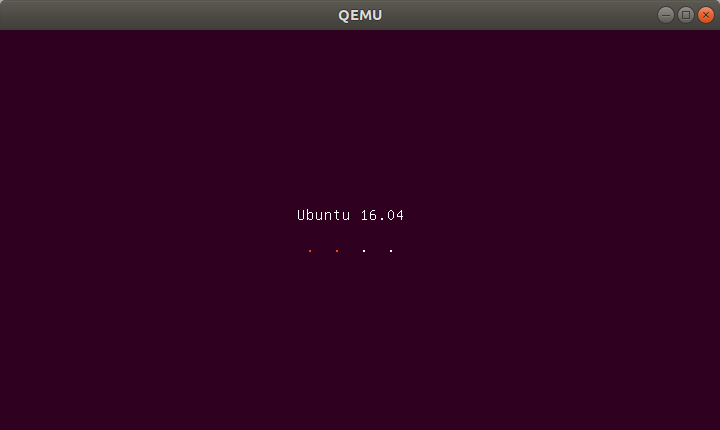
If you’ve done everything right, you should see the system booting up:
You can control the VM using the KVM command shell by hitting Ctrl-Alt-1:
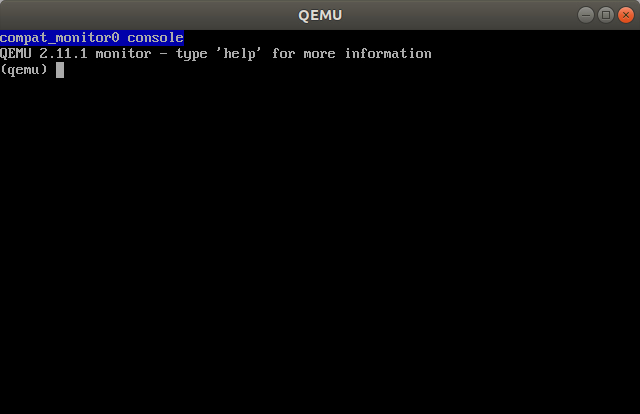
What I mostly use this for is to send the Ctrl-Alt-F1 to the VM to switch to a different TTY.
2. Booting image files with KVM (EFI)
Booting a virtual machine via UEFI is pretty similar. The only real thing you have to change is to specify a UEFI firmware that KVM should use. OVMF is such a firmware. You can install it via apt:
Install KVM and the UEFI firmware
$ sudo apt install qemu-kvm ovmf
Once that’s installed, simply add the -bios option like this:
Script ‘boot-efi’ to boot from a single image file via KVM
#!/bin/bash
kvm \
  -bios /usr/share/qemu/OVMF.fd \
  -drive format=raw,file=$1 \
  -net none \
  -serial stdio \
  -m 4G \
  -cpu host \
  -smp 2
After you save this as a script, e.g. boot-efi, you can use it like this:
$ boot-efi disk.img
$ boot-efi ubuntu-16.04.1-desktop-amd64.iso
...
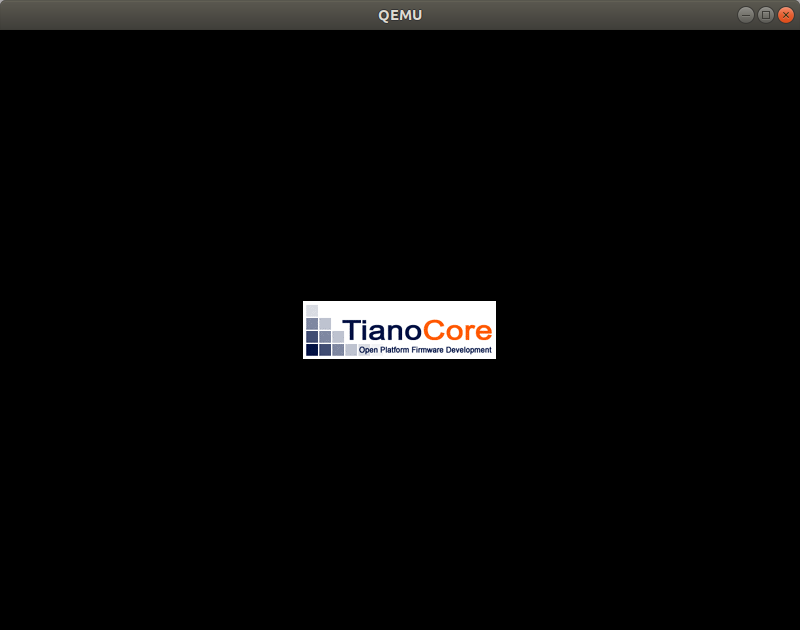
When booting, you’ll see that the output will have changed slightly, like this:
That’s really it. You can check out more KVM options in the man page by typing man qemu-system-x86_64.
A. About this post
I’m trying a new section for my blog. I call it Code Snippets. It’ll be very short, code-focused posts of things I recently discovered or find fascinating or helpful. I hope this helps.